Scrolling though my Twitter feed today I saw this from tweet from Roberto Stefanetti :-
This feature actually has a far more important use for all of us especially in the SaaS solution. So I thought I would point it out if you have not figured it out for yourself.
In on-premise NAV/BC sites, when I get a call to look at a performance issue, there are two things that I check first in the application setup itself :-
- Inventory Setup->Automatic Cost Adjustment must be set to Never. This makes sure when posting a transaction that affects inventory value, the system does not post additional transactions on top of the one being posted to reflect the change in inventory value.
- Analysis Views->Update on Posting must be set to No. for all of them. This one effectively updates a reporting cube in the background if a transaction that is being posted affects it.
In my experience I cannot see any good functional reason for either of these to be updated in a system during normal working hours. Why add more work for the system to do while others may be trying to get exclusive use of the same tables ?
Usually, I recommend scheduling these updates with a modification to call the underlying Codeunits that action Adjust Cost Item Entries / Post Cost Inventory Cost to G/L and Update Analysis Views from my toolbox so these are run via NAS / Job Queue / Web Service (whatever weapon suits the version the customer is on) overnight.
Even if the users are reporting against Analysis Views for end of month reporting and need to have them refreshed a few times during this period the cost of refreshing it once or twice (if absolutely needed), will be far less than having an automated update being triggered by whoever is trying post something on the shop floor.
So what now ?
In the April release we can now schedule either of these functions to be updated by using the scheduling feature directly from the Adjust Cost Item Entries Report or Update Analysis Views Report. It’s out of the box ! No developer toolbox required !
You can set this up with the following steps :-
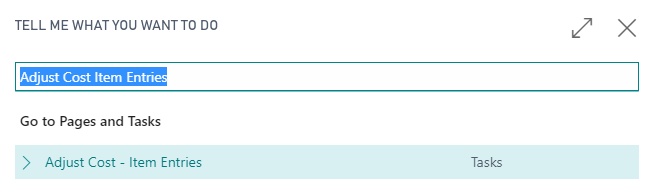
- ALT+Q -> Search for Adjust Cost Item Entries
- Select any filters you require and select Schedule
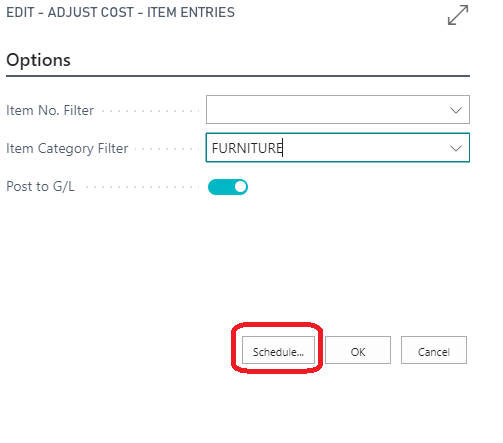
- Edit the Description so that you can identify it in the Job Queue, enter a value for Next Run Date Formula and the Earliest Start Date/Time field

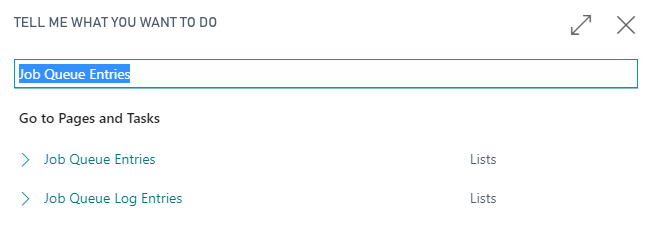
- Check that the Job Queue Entry has been created by pressing ALT+Q and search for Job Queue Entries
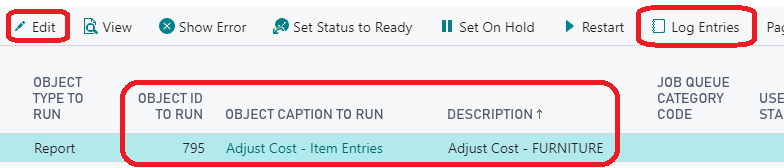
- Notice that the there is a new Job Queue Entry record created with the description that was entered previously. You can now Edit the Job Queue or View it’s Log Entries just like a normal Job Queue.
In the future…
We don’t know what tools we are going to get to troubleshoot performance issues in the SaaS solution in the future. There will most certainly be performance issues, and how we will solve them is anyone’s guess. I would rather setup a system to avoid known issues, be a good cloud citizen and not cause a loss of sleep for @KennieNP
/cal;

 C/ALcified Developer